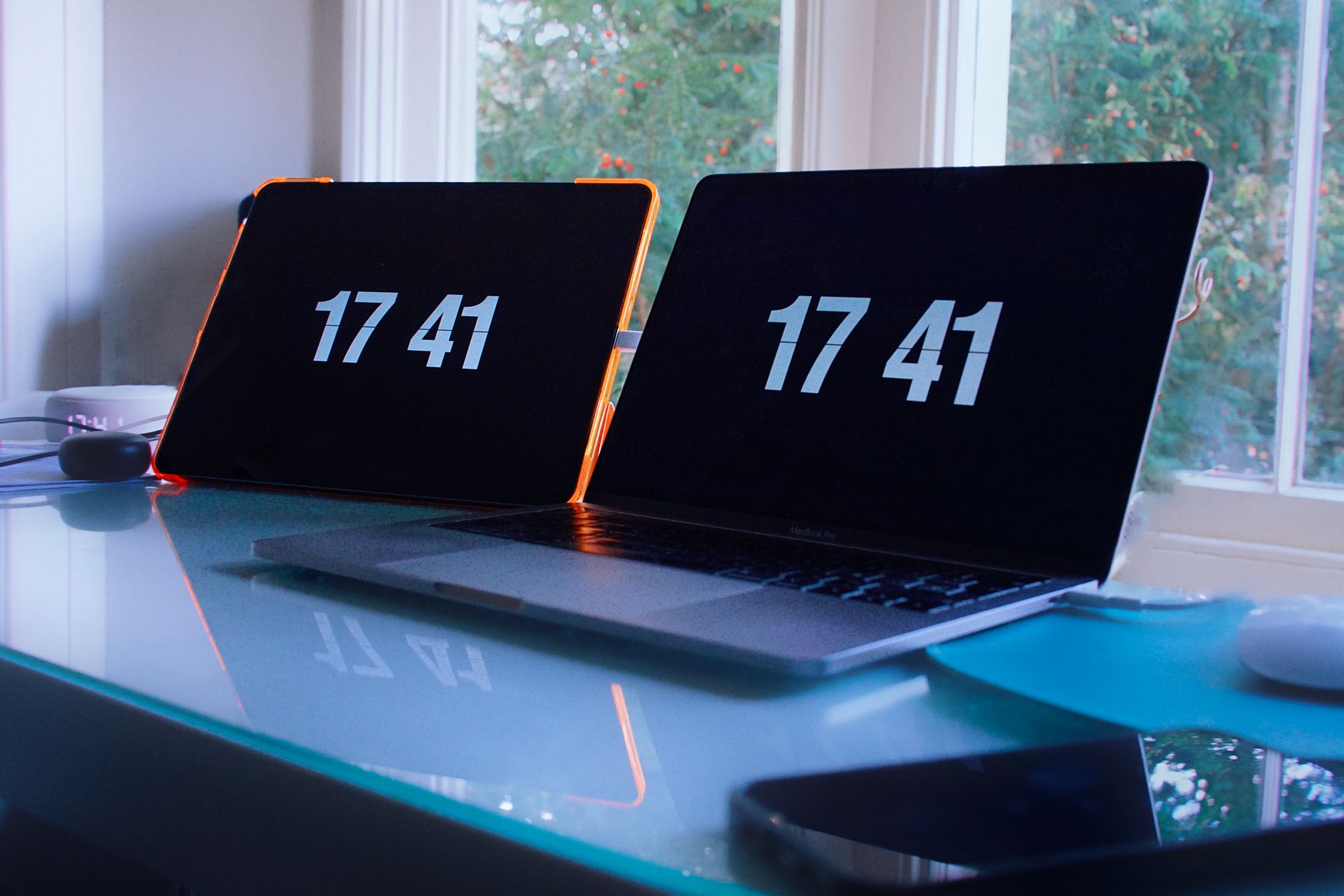
What happens when your office clock schedule drifts by just 15 minutes?
A 15-minute drift in an office clock schedule does not just affect the time displayed. It shifts the entire rhythm of a working day. A meeting booked for 10:00 AM begins at 9:45 AM for some staff, while others arrive late. The room reserved for the session may still be locked, or the presenter may have already left the building. Even if the meeting starts on time for most, the minutes before and after become a scramble. Attendees check their watches repeatedly, unsure whether they are early or late, and the confusion delays decisions.
The problem worsens when the clock feeds other systems. A digital signage display showing meeting updates now misaligns with the actual schedule. A screen announcing a 10:30 AM all-hands briefing instead shows 10:15 AM, leaving staff unaware until the last moment. If the signage also triggers automated alerts, such as a countdown to a fire drill, the timing becomes unreliable. Staff may dismiss a 10:45 AM alert as premature, or worse, treat a 10:15 AM warning as urgent when it was meant for 10:30 AM.
The fix cannot rely on manual checks. A facilities manager cannot visit every screen daily to verify the time. Nor can they assume that network time protocol (NTP) alone will prevent drift. If a device loses its connection to the NTP server, even briefly, it reverts to its last synced time, which may already be out by minutes. Without a way to push corrections instantly, the clock continues to drift until someone notices.
The solution is to use a system that overrides the display when the time changes. When the server detects a discrepancy, such as a clock running slow by 15 minutes, it sends an alert to every screen. The device ignores its current time and updates immediately, using Android’s display-over-other-apps permission to take control. This ensures that even if the local clock is wrong, the correct time appears on screen within seconds. The screen also confirms receipt, so the panel shows what is actually being displayed, not what the device thinks it should be. No manual intervention is needed, and no system depends on a single time source. The schedule stays aligned without constant oversight.
Can your digital signage handle daylight saving time without IT intervention?
Daylight saving time is not a single event. It is a chain of overlapping rules: the date the clocks change, the hour they change, whether the change is forward or back, and what happens if the network fails during the transition. Most systems handle one of these correctly and guess at the rest. The result is a screen that shows the wrong time for an hour, or a loop that repeats the same announcement twice because the schedule never adjusted.
The problem starts with polling. A server that asks for an update every minute still needs to know when the update is due. If the schedule is hardcoded to run at 07:00 but the clocks have just moved back, the screen either shows nothing or replays yesterday’s content. Worse, it may not report the failure, only the panel sees the mismatch, and by then the damage is done. A system that relies on a cloud provider’s time server compounds the issue. If the connection drops during the transition, the screen defaults to its last known time, which may now be an hour out of sync.
The alternative is to treat daylight saving as a scheduled override. The server does not wait for a poll; it pushes nothing. Instead, each screen checks its own system clock against a list of known transitions. When the time matches a rule, such as “March 31st, 01:00 GMT becomes 02:00 BST”, the player adjusts its internal schedule instantly. No network dependency, no silent drift. The panel confirms the change by comparing what is shown against what was ordered, so a misaligned screen stands out immediately.
This approach works even when the network is down. The player caches the corrected schedule alongside its media, so the time update survives a full outage. The trade-off is that the server must know the rules in advance. But that is easier than maintaining a fleet of screens that silently fail when the clocks change. The real cost is not the initial setup, it is the embarrassment of a reception screen showing the wrong time during a board meeting, or a shift board that triggers an hour early because no one noticed the drift.
| Approach | Handles time changes | Reports failures | Works offline | Requires network |
|---|---|---|---|---|
| Cloud time sync | Only if connected | No | No | Yes |
| Hardcoded schedules | Fails on transition | Sometimes | Yes | No |
| Local system clock | Corrects automatically | Yes | Yes | No |
| Manual IT adjustment | Depends on oversight | After the event | N/A | N/A |
The last row is the one most offices fear. A facilities manager who checks the screens once a week will not spot the error until Monday morning, by which point the schedule has been wrong for three days. The first row assumes the network is always available, which it is not. The second row is what happens when a system treats daylight saving as an afterthought. Only the third row guarantees the time stays correct, even when the WiFi cuts out. The mechanism is simple: the screen knows the rules, applies them itself, and proves it worked. No IT intervention. No silent failures. Just a clock that stays accurate, no matter what the season.
Why your ‘set and forget’ office clock schedule will fail in three months
Automated office clocks sound simple until the network drops for an hour. A clock that fetches its time from an NTP server will not correct itself until the connection returns, leaving staff confused about whether they are early or late. Even a brief outage can throw off schedules, and if the clock has no local fallback, it will display whatever time it last received, which may be hours out of sync. A single missed update is not the problem; it is the lack of visibility. Without logs or alerts, no one notices until someone points out the clock is wrong.
Software updates complicate matters further. An operating system patch might reset time zone settings or disable background sync services. If the clock app relies on an auto-update feature, it could revert to an older version that no longer aligns with daylight saving rules. Worse, some updates require a reboot, and if the clock is on a locked-down kiosk, it may never restart automatically. The result is a clock that suddenly shows the wrong time, without warning.
Hardware failures add another layer. A failing power supply can cause a device to lose its internal clock, while a corrupted SD card might prevent the system from booting into the correct time-syncing app. If the clock has no backup mechanism, it defaults to the last known time, often midnight or the time of the last manual adjustment. By the time someone checks, the entire office schedule is adrift.
The real issue is not the clock itself but the absence of checks. A schedule that works today may collapse tomorrow if no one verifies whether the device is still pulling time, whether updates have disrupted it, or whether the hardware is still functional. Without automated acknowledgements from each clock, confirming it has the right time and is still running, there is no way to know until it is too late.
How to sync office schedules across multiple time zones without a global IT team
Hybrid offices with sites in London and Edinburgh do not share a clock. A meeting set for 10:00 in Glasgow appears as 09:00 on a London screen, and a hybrid worker in Manchester checks in at the wrong time. The problem is not the clocks themselves, it is the assumption that a single schedule applies everywhere.
This system resolves the conflict by treating each screen as local. The schedule is stored on the device itself, not on a central server. When a screen boots, it fetches its own time zone from the operating system and applies it to every alert, playlist and time-based event. A London screen shows 10:00 as 10:00; an Edinburgh screen shows it as 11:00. There is no global override, no manual adjustment, and no reliance on a network call to determine what time it is.
The trade-off is that a screen left in the wrong time zone will show the wrong time. That cannot be fixed remotely. The solution is to set the device’s system clock once during installation and never touch it again. A screen in a fixed location does not move, and its time zone does not change. If a device is relocated, the time zone must be updated on the device itself before it is reused, just as it would be for any other piece of equipment moving between offices.
Daylight saving time is handled the same way. The device checks its own clock when the transition occurs, adjusts the displayed time automatically, and carries on. There is no central command to synchronise, no waiting for an IT team to push an update, and no risk of a screen falling out of sync if the network fails during the switch.
The only exception is an emergency alert, which bypasses the local schedule entirely. If a fire alarm triggers in Manchester, every screen in the building, regardless of its time zone setting, shows the alert immediately. The system flags screens that cannot draw over another app before they are deployed, so the alert still reaches the wall even if the player itself cannot interrupt what is playing. The rest of the schedule resumes as soon as the alert clears, using the device’s correct local time.
What’s the real cost of a screen showing the wrong time, beyond the obvious embarrassment?
A clock that drifts by even a few minutes creates a ripple effect that goes far beyond a misaligned display. When a screen shows the wrong time, staff start compensating, adjusting their own watches, double-checking digital devices, or relying on their phones. That habit wastes minutes every hour, and those minutes add up. A team of ten making a single phone check per shift loses nearly an hour of focused work each week. The cost isn’t just in lost productivity; it’s in the unspoken frustration that builds when basic workplace reliability fails.
Compliance risks multiply when timekeeping is inconsistent. Shift logs, break schedules, and regulatory deadlines all depend on accurate timestamps. If a screen shows the wrong time during a critical handover, it creates a paper trail of errors that could trigger audits or even legal challenges. A factory with staggered shifts might see misaligned production records, while an office with fixed meeting slots risks scheduling conflicts that cascade through the day. The deeper issue is that manual adjustments, someone physically correcting a clock after noticing it’s wrong, leave no record of when or why the change happened. That gap makes it impossible to prove compliance when it matters.
Automation removes these hidden costs by ensuring every screen stays in sync without human intervention. When an alert interrupts a display, it doesn’t just show the correct time, it confirms the update was received and logged. If a network fails, the cached content keeps running, so the clock never stops. The system also tracks which screens acknowledged each change, so a facilities manager can spot a silent failure before it causes confusion. No more guessing whether a clock is wrong; no more wasted time fixing it later. The reliability isn’t just about accuracy, it’s about eliminating the secondary effects that turn a small error into a much larger problem.
Can your digital signage platform handle overlapping schedules without conflicts?
When a screen shows a meeting reminder at the same moment a fire drill alert arrives, only one can win. The system uses a priority list tied to each alert type, not a queue. A fire drill alert, for example, interrupts a meeting reminder because it is marked as critical. That marking is set in the server’s rules, not by the screen itself. If two alerts share the same priority, say, two different fire exits, only the last one sent takes effect. The screen discards the first and displays the second, then reports which one it showed.
This avoids the risk of a screen splitting its display or showing partial content. The mechanism is simple: the server assigns a priority number to each alert. Higher numbers override lower ones. If two alerts arrive at once with the same number, the system defaults to the most recent. The screen does not guess or delay. It acts immediately, then confirms what it displayed.
A facilities manager can adjust these priorities without touching each screen. Change the rule on the server, and every device updates on its next poll. That means a fire drill alert always beats a meeting reminder, but a site-wide announcement can be set to override both, if needed. The trade-off is visibility: the panel shows what is actually on the wall, so if a screen fails to receive an alert, the manager sees the gap at once.
The system does not blend or fade between alerts. It replaces content instantly. That avoids confusion when a break reminder appears mid-meeting. The screen shows only the highest-priority item, then returns to its scheduled loop as soon as the alert ends. No partial displays. No missed updates. The manager controls the order, not the screen.
How to audit your office clock schedule for silent failures before they disrupt operations
Before checking the schedule itself, confirm that every screen has the correct time. A clock that runs fast or slow by even a few minutes throws off shift boards, meeting room bookings and public-facing displays. Start with the devices themselves: open the Android settings on each screen and verify the time zone and network time protocol (NTP) source. If the building’s NTP server is offline, the screens will drift to their own local time or the last sync. Test this by temporarily disabling the NTP service, within minutes, the clocks will begin to diverge. Correct any misconfigurations before deploying the schedule, as a wrong time on one screen invalidates the entire system.
Next, audit the schedule’s dependencies. A clock that relies on a network calendar or external API will fail if that service goes down. For example, if the schedule pulls meeting room availability from a Microsoft Exchange feed, a server outage turns the display into a blank screen. Use the software’s preview mode to simulate these failures: disable the feed’s endpoint or introduce a delay. The preview should show either a cached fallback or a clear error message. If it does neither, the schedule cannot recover autonomously.
Check the logs for silent errors. A schedule that appears to run but skips updates, perhaps because a media file failed to load, leaves screens showing stale information. Review the player logs on a sample of devices for entries marked as "failed to render" or "network timeout". These indicate content that never reached the screen, even if the schedule’s panel shows it as "live". The logs also reveal which screens dropped offline during testing. The panel flags screens that cannot draw over another app before you need them, so exclude those from critical alerts until the permission is granted.
Finally, test the schedule’s recovery. If the network drops for eight hours, the screens should continue displaying the last known state. Physically unplug one screen’s Ethernet cable and observe: the display should remain unchanged until the connection returns. If it reverts to a default image or blank screen, the cached content was either corrupted or not saved. Adjust the polling interval in the schedule settings to ensure the device retrieves updates only when the network is confirmed stable.
The next step is to run the schedule in a non-production environment for 72 hours. Use real devices, not emulators, and monitor the logs for any unhandled exceptions. If everything holds, deploy to one floor first. Keep the full audit trail, timestamps, log extracts and screenshots, for the first month, in case a failure appears later.