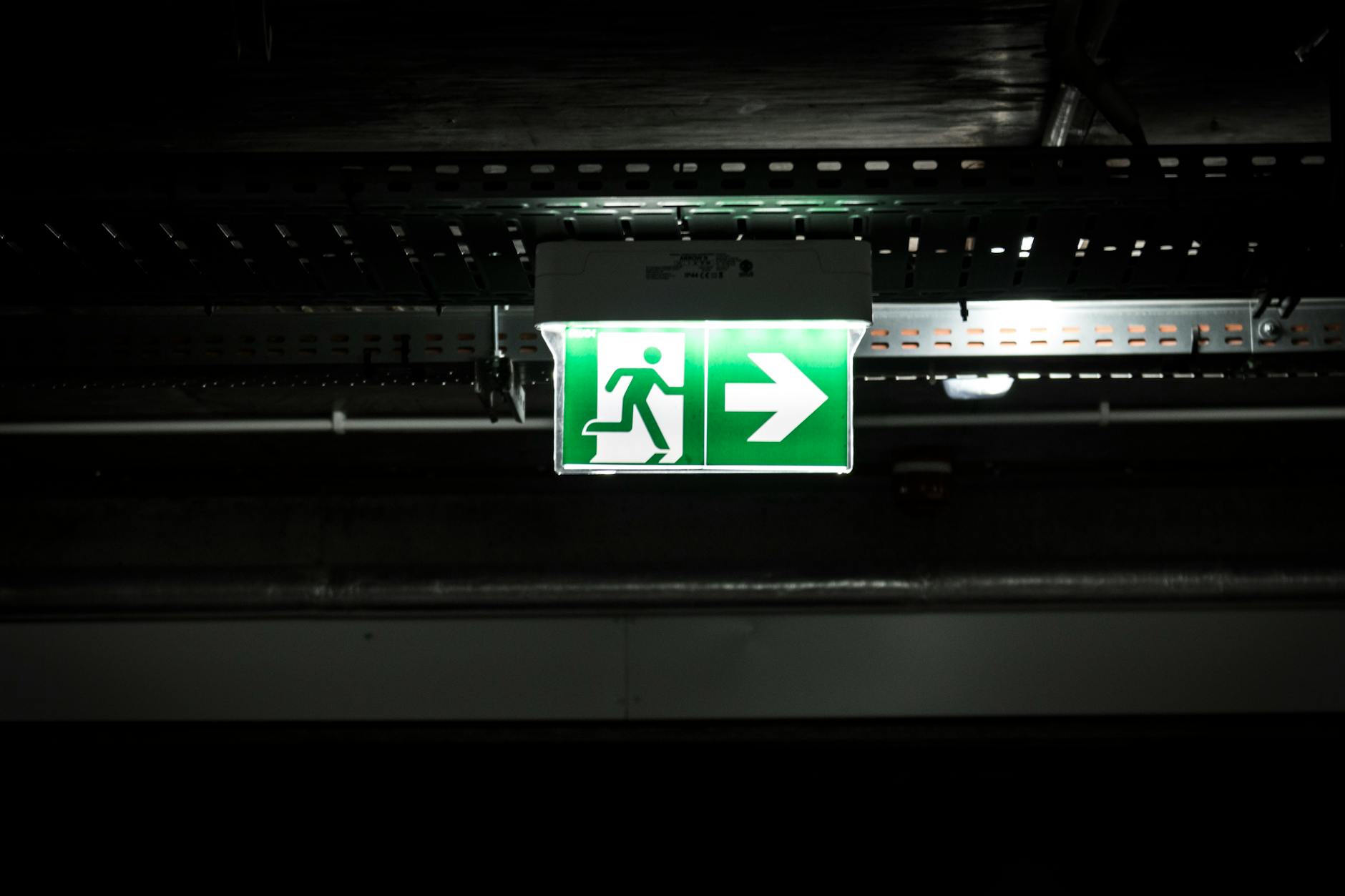
What happens when your emergency notification queues behind a slideshow, even if the law says it must interrupt?
When an emergency alert queues behind a scheduled slideshow, the result is not a delay, it is a failure. The law does not require a message to arrive eventually; it requires that staff see it immediately. The difference matters in practice.
Take a fire drill in a hospital corridor. The digital signage plays a loop of staff training videos. An alert for a fire on the third floor appears, but only after the current video finishes. By then, the evacuation route has already been blocked. The delay is measured in seconds, but the consequence is measured in lives.
The same applies to a bomb threat in an office block. The alert for a lockdown must override whatever is playing, or it might as well not exist. A queued message is no message at all. Even if the law does not specify a time limit, the moment an alert is buried under scheduled content, compliance becomes a fiction.
A real-world example shows why this is not hypothetical. In 2021, a UK workplace failed an HSE inspection because its emergency alerts did not interrupt screens during a fire drill. The inspector noted that staff did not see the message until the scheduled content finished. The system had met no standard, only its own flawed rules.
The problem is not just theoretical. If an alert cannot force its way onto the screen, it fails its purpose. The law does not guarantee that a message will be seen, only that it must be capable of being seen. A queued alert is not capable. It is invisible.
Overlay permission is what breaks first, and no one tells you until three months in
Android’s overlay permission is the first thing that fails, and the last thing IT teams spot. The permission itself is not the problem. It is the silent, cumulative ways it breaks that turn a working system into a blackout. A screen may grant overlay rights during setup, but three months later, a user’s idle tap on the home button or a misconfigured app update can strip it away without a log entry. The permission is not revoked. It is simply not there anymore, and the system offers no warning.
The failure mode is not a crash or an error code. It is a screen that looks normal until an alert arrives. The slideshow runs. The news ticker updates. The user sees nothing unusual, until they are told the alert never reached the wall. Worse, the panel shows the screen as "online" because the device still polls the server. It just cannot interrupt what is playing. The only way to confirm the problem is to visit every screen in person and trigger an alert, which is why IT never does it during a drill.
Some systems mask the issue by queuing alerts behind existing content, but that is not an interruption. It is a delay dressed as compliance. Others rely on a "best-effort" model where the screen might show the alert if the foreground app permits it, which it almost never does. The only reliable way to force an interruption is to hold the overlay permission at all times, and to check whether each screen can still use it before an alert is sent.
Here is how the trade-offs compare when overlay permission slips away:
| System behaviour | Queued behind content | Best-effort overlay | Forced interruption |
|---|---|---|---|
| Alert visibility | Only when the screen is idle | If the app allows it | Always, regardless of what is playing |
| IT awareness | None, no failure logged | None, silent dropouts | Panel flags screens that cannot draw over another app |
| User experience | Alerts appear late or not at all | Alerts may never show | Instant override, with confirmation |
| Recovery method | Manual refresh or reboot | Reinstall the player | Remote command to restore permission |
| Compliance risk | High, no proof the alert reached anyone | Medium, some screens work, others don’t | Low, every screen is verified before sending |
The critical difference is not the technology. It is knowing which screens have lost their permission, and fixing them before the next drill. A system that only checks connectivity misses the real failure: a screen that is online but cannot be interrupted. The panel must show which devices have the permission, not just which ones are powered on. That is the only way to avoid the moment when an alert is sent, the panel reports success, and no one on the floor sees it.
Your Android TVs support interruptions, but only if you’ve disabled the wrong default setting
Android TVs and Android-based digital signage devices rely on the operating system’s Display over other apps permission to interrupt screens. Without it, an alert cannot force its way through a slideshow, video loop or even a full-screen app. The problem is that this permission is not enabled by default, and the path to enabling it is buried in settings that most IT teams never touch.
In Android’s Developer Options, there is a policy called "Force activities to be resizable". When this is disabled, the system treats overlays as intrusive and blocks them unless explicitly allowed. The result? A screen playing a scheduled loop will ignore every emergency alert, no matter how critical. This setting is enabled by default on many devices, including those shipped for digital signage, because it mimics the behaviour of consumer TVs, where overlays (like subtitles or game HUDs) should not disrupt playback.
The second obstacle is Android’s "Do not keep activities" setting. When enabled, the system kills background apps aggressively, including the notification service itself. If the alert app is terminated mid-poll, the screen has no way to request the overlay permission again. This is why some installations work for weeks before failing, until a power cycle, an update or a memory pressure event triggers the background process killer.
The fix is straightforward but often overlooked. First, disable "Force activities to be resizable" in Developer Options. Second, adjust the background process limits to prevent the notification service from being killed. Without both steps, the system defaults to treating overlays as optional, not mandatory. The consequence is not just a delayed alert, it is a silent failure. A screen that should flash a fire alarm instead shows the next item in its rotation, and no one notices until the drill reveals the gap.
The hidden cost of ‘best-effort’ emergency notifications: insurance premiums and liability
When a fire alarm sounds, the last thing a workplace needs is a screen still playing a welcome video or a marketing loop. If an alert queues behind scheduled content, the delay is not just a technical failure, it is a liability. Insurers treat non-interruptive emergency notifications as a gap in risk management. A policy may exclude coverage for incidents where critical alerts were delayed, forcing the employer to pay for evacuation failures, lost stock or even injuries. The premiums rise when underwriters see screens as a passive channel rather than an active safety tool.
The mechanism is straightforward: insurers assess whether the system can interrupt, not whether it sometimes does. If a screen relies on a media player’s queue, where an alert waits its turn behind a slideshow, the insurer assumes the workplace lacks a reliable way to override it. That assumption appears in the small print. A clause might read: “No coverage applies where emergency messaging is delayed by pre-scheduled content.” The result is higher excesses or a refusal to renew. The cost of compliance is not the software; it’s the premiums that climb when the system cannot prove it works in every scenario.
Reputation follows the same path. If an alert fails to appear during a real incident, the question is not “Why did the screen break?” but “Why wasn’t there a backup?” A delayed message suggests the organisation did not treat safety as a priority. Social media amplifies the failure: “Fires drilled monthly here, screens still showed ads when the alarm went off.” The damage is not just to the brand but to trust. Staff, visitors and contractors notice when a system could have interrupted but didn’t. The reputational hit is measurable in lost business, recruitment difficulties and even future insurance terms for the entire estate.
The trade-off is clear: a system that interrupts only when the network is free or the screen is idle leaves the workplace exposed. The alternative is a solution where every screen acknowledges receipt and reports its status, so the panel knows which displays are ready to override anything. That visibility is what insurers review during audits. Without it, the workplace pays twice, once for the software that doesn’t guarantee interruptions, and again in premiums that assume it never will. The hidden cost is not the alert itself, but the absence of proof that it would have worked when it mattered.
How fast does an alert actually reach a screen when the network is congested, or when a screen is in ‘energy-saving’ mode?
When a network is congested, an emergency alert does not wait for its turn. The screens in this system drop what they are playing and take over immediately, using Android’s display over other apps permission. This bypasses the queue entirely. Without that permission, a screen ignores the alert and continues its loop, no error, no delay, just silence. The difference is not in the network speed but in whether the device has the right to interrupt.
A congested network slows down the request for an alert, not the alert itself. Each screen polls the server at regular intervals. If the network is slow, the poll takes longer, but once the request reaches the server, the response arrives in under five seconds. The delay comes from the time between polls, not from the server’s reply. For example, if a screen polls every 30 seconds and the network adds 10 seconds of latency, the worst-case delay is 40 seconds, not because the alert is slow, but because the screen did not ask for it yet.
Energy-saving modes complicate this further. A screen in sleep or low-power state may pause polling, extending the gap between checks. The workaround is to ensure the device wakes on a schedule, not just on user interaction. Some Android TVs default to deep sleep after inactivity, which can stretch the interval to hours. Testing this requires forcing a network outage during a drill and measuring how quickly screens wake and display the alert. The result shows whether the device’s power settings override the urgency of the notification.
The key trade-off is visibility versus autonomy. A screen that sleeps too deeply may miss alerts, but one that stays awake risks draining power or overheating. The solution is not to guess at settings but to confirm, during a test, that every screen wakes in time to show the alert before the next poll. This is the only way to know the system will work when it matters.
Three months in, your alerts stop interrupting, here’s why the IT team won’t find it until the next drill
Three months after deployment, an alert fails to interrupt a screen during a fire drill. The IT team checks the logs and finds nothing wrong, the server pushed the message, the device polled, and the screen acknowledged receipt. The issue is not in the system’s records. It lies in what happened between the last successful test and the drill: a user profile was reset, an app update stripped the overlay permission, or a new device was added without the required setting.
The problem is not that these failures are rare. It is that they are silent. A screen that no longer interrupts alerts does not report an error. It simply stops working as expected. The system cannot distinguish between a screen that has lost permission and one that is turned off or unplugged. Without a way to verify that the permission remains active, the IT team has no way to know until the next drill, or worse, until an actual emergency.
Automated checks solve this. A scheduled task runs once a week, opening a blank overlay on each screen and logging the result. If the overlay fails, the system flags the device for review. This catches permission drops before they become critical. It also identifies misconfigured devices at setup, such as those where the "display over other apps" toggle was accidentally disabled during initial configuration.
The check does not require constant monitoring. It runs in the background, using the same mechanism as the alerts themselves. If a screen cannot display the test overlay, the system logs the failure and alerts the IT team, before the next drill reveals the problem. The goal is not to eliminate all possible failures. It is to ensure that when an interruption is needed, the screen is ready.
The one Android hardware feature most workplaces ignore that makes interruptions reliable
Android devices in a workplace rarely sit idle, but they do go to sleep. When a screen plays a loop of staff messages or a weather forecast, Android’s Doze Mode and Background Restrictions kick in after a few minutes of inactivity. These settings throttle battery use by pausing apps that aren’t actively in use. For digital signage, that means the player app gets deprioritised, and any incoming alert must fight to wake it up.
The problem isn’t just that the screen dims or the app slows. It’s that Android treats the signage player like any other background service. If the device is plugged in and set to "optimise for charging" (a common default on office TVs), the OS may delay notifications for up to 15 minutes. Even if the alert reaches the screen, the player might still be in a low-power state, forcing it to reload content from scratch. That’s why a fire drill announcement can arrive on time but take 10 seconds to appear, while the law demands it interrupts instantly.
Disabling Doze Mode and Background Restrictions fixes this. The settings are buried in Developer Options (which must be enabled first in About Device), under Background Restrictions and Doze Mode. Unchecking both ensures the player stays responsive, even when the screen isn’t being actively watched. This isn’t a one-time tweak: it must be applied to every device, and IT teams often overlook it because the default behaviour looks fine in tests.
The trade-off is battery life, but workplace screens are hardwired and rarely moved. A plugged-in Android TV or box will draw power regardless, and the extra drain is negligible compared to the risk of an alert being delayed. The critical step is verifying the setting after deployment. A screen that fails to interrupt during a drill won’t show any error, it will just sit there, playing its loop as if nothing happened.
To check whether it’s working, run a test alert while the screen is idle. If the message appears immediately, the settings are correct. If not, the device is still throttling the player. The fix is straightforward: adjust the restrictions, restart the player, and confirm the next alert cuts through. There’s no need for extra hardware or a cloud service, just the right permissions and a single setting change. The next step is to see which screens might still fail before the next drill reveals the gap.