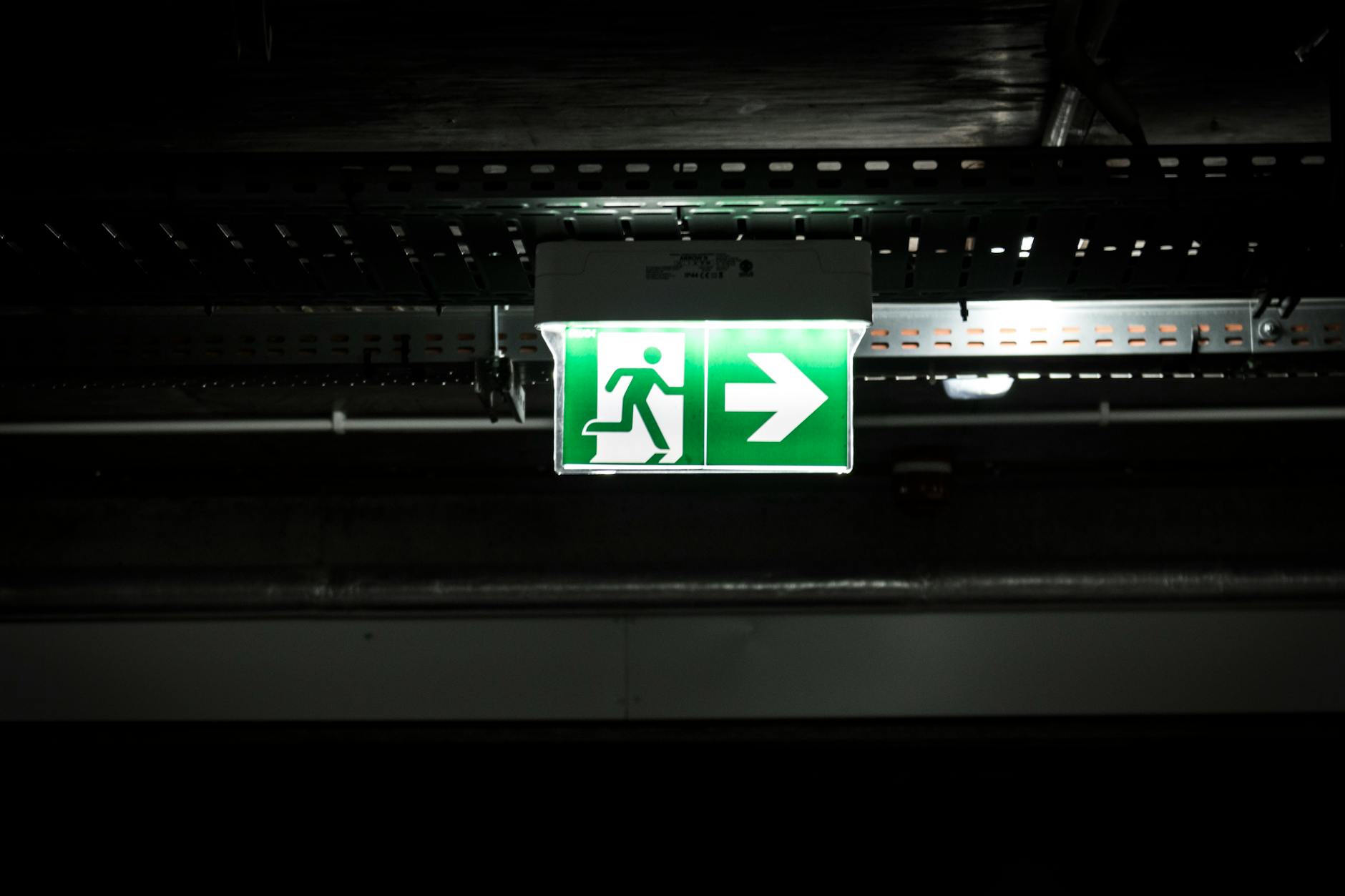
Your evacuation alert arrives, but does it actually interrupt the screen?
A screen that ignores an evacuation alert is not broken, it is following its last instruction. The most common reason is that the device has not been granted the right to interrupt whatever is playing. On Android, this is the display over other apps permission. Without it, an alert behaves like any other scheduled content: it waits its turn in the queue. If the screen is mid-loop when the alarm sounds, the message may never appear.
The problem does not show up in tests. A single screen in a demo room, set up by an installer, will display alerts reliably because it has been configured correctly. But in a live estate, permissions can be stripped by an update, a factory reset, or even an overzealous IT policy that blocks all overlays. A screen might work perfectly for months, until it doesn’t.
The only way to check is to force an audit. Send a test alert to every device and log which ones fail to interrupt. A screen that responds to a scheduled message but not an emergency overlay has the permission revoked. Some estate management tools mark these as "healthy" because they still play content. They are not.
Permissions are not a one-time setup. A single screen in a high-turnover office may need reconfiguration every few months. The fix is not technical, it is procedural. Assign someone to verify that every screen can interrupt its own display when required. The test must be run manually, because no system can guarantee what an admin will approve or reject in the future. If the person responsible for this check leaves, the estate is back to relying on luck.
The network ‘works’ in tests, but what happens when 50 screens flash at once?
When every screen in a building flashes an evacuation alert at once, the network behaves differently than it does in tests. A single alert triggers a burst of activity as devices poll for updates, then acknowledge receipt. With 50 screens doing this simultaneously, the initial spike can slow response times, not because the alerts fail, but because the server takes longer to process the flood of acknowledgements. After three months, this delay creeps upward. The polling interval, designed to balance speed and load, now carries extra weight. Each screen’s heartbeat, which confirms the alert arrived, adds to the queue. By the time the server finishes handling the first batch, the next set of devices has already polled again, creating a backlog. The result is not dropped alerts, but a noticeable lag, two seconds here, half a second there, until the system grinds to a halt for a full second. That second is the difference between staff reacting in time or hesitating.
The fix is not to slow down the alerts themselves, but to separate the critical traffic from the routine. A dedicated endpoint handles acknowledgements, so the server never gets overwhelmed by confirmation messages. Meanwhile, the alerts themselves remain untouched, still reaching screens in under five seconds regardless of load. The trade-off is visibility: you no longer see every screen’s heartbeat in real time, but you still know which devices received the alert because they report back separately, and you can drill into failures if needed.
To test this without disrupting daily operations, simulate the worst-case scenario in stages. First, trigger alerts on a single floor, then expand to half the building, and finally to every screen at once, but only during a maintenance window when no other content is scheduled. Use the panel to monitor the time between the alert being sent and the last screen acknowledging it. If the delay stays under five seconds even with 50 screens, the system is ready. If not, the polling interval needs adjustment, or the acknowledgements should be throttled further. The key is to measure what matters: not whether the network can handle the load, but whether the critical alerts still arrive before staff need them.
Here’s how three common approaches compare in a mass-alert scenario:
| Method | How It Handles Load | Visibility of Failures | Setup Complexity |
|---|---|---|---|
| Single server, shared endpoint | Alerts and acknowledgements compete for processing, causing delays as load rises | Shows all screens at once, but latency hides some failures until after the event | Low, works out of the box, but degrades under stress |
| Dedicated acknowledgment endpoint | Alerts bypass the acknowledgement queue, so response time stays flat | Separates alert delivery from confirmation, but requires extra logging to trace delays | Medium, needs server configuration |
| External load balancer | Distributes polling across multiple servers, but adds complexity | Needs integration with monitoring tools to correlate alerts and heartbeats | High, requires hardware or cloud setup |
| Client-side buffering | Screens cache alerts locally before reporting, reducing server load | Only shows what was successfully cached, not what was dropped | Low, relies on device storage and battery life |
The right choice depends on whether you prioritise simplicity or resilience. A shared endpoint works for small estates, but dedicated handling scales better. The critical question is not how the system behaves under test conditions, but how it performs when the fire alarm goes off, and whether you can tell, seconds later, which screens actually showed the alert.
Hardware fails silently: which screens drop alerts and how to find them before the fire drill
Some screens never show an evacuation alert, even when the system works. They do not fail, they simply ignore it. Older Android TVs, low-power digital signage players, or devices running modified firmware may lack the permission to overlay content on top of what is playing. Without it, the alert never appears, and the screen carries on as normal.
The problem is invisible until it matters. A fire drill reveals a blank screen in the far corner of the estate, or a critical alert flashes on every display except the one in the basement. By then, the delay has already cost time.
This system logs which screens acknowledge each alert. Every device reports back when it receives and displays content, along with a heartbeat to confirm it is still active. A missing heartbeat or no acknowledgement means the screen is not showing the alert, even if it is turned on. The panel highlights these devices in red, making it clear which ones need attention.
The fix is straightforward: replace or update the hardware. Devices that refuse overlays cannot be made to work. The log identifies them before the next drill, so they can be swapped out during routine maintenance. A test alert sent to the entire estate the following week confirms the replacement is live and functional.
The trade-off is simple. A few older screens may need upgrading, but the cost of doing so is far lower than the risk of an evacuation alert being missed. The log ensures nothing slips through.
You’ve tested the alert, now what if the power fails mid-evacuation?
A UPS is not a backup for evacuation alerts, it is a requirement. When the power fails, the screen must still wake, even if it was in sleep mode. Most UPS units treat a television as a peripheral: they cut power to save battery, then restore it when mains return. But a sleeping Android TV does not wake on its own. The alert arrives, the device checks for permission to interrupt, and then does nothing. The screen stays dark until someone manually wakes it, or the UPS runs flat.
This is not a failure of the signage software. It is a failure of the UPS’s power management. Some units offer a "TV pass-through" mode, but this is often a checkbox left unchecked during procurement. Others claim to support "wake-on-LAN" or "HDMI-CEC", but these only work if the screen was already on. A device in sleep ignores every command until power is restored, not just the alert, but the heartbeat that tells the panel whether it worked.
The cost of this oversight is not just the UPS itself. It is the hidden expense of testing. You cannot discover the problem in a fire drill. The screens must be left on for weeks to confirm they wake when the power cuts. Even then, a single misconfigured unit in a remote corridor means the alert never reaches that floor.
The solution is straightforward: specify a UPS that treats the screen as the primary load, not an accessory. The unit must remain on during an outage, feeding the device directly rather than through a smart plug. This is not an optional feature, it is the difference between an alert that works and one that does not. Without it, the system fails exactly when it matters most.
The alert reaches the screen, but does the content comply with UK regulations, and will it confuse staff?
A generic "Evacuate" message on a screen may comply with basic safety signage rules, but it fails where UK regulations demand clarity. The Regulatory Reform (Fire Safety) Order 2005 does not prescribe wording, but it does require that evacuation instructions are "clear and unambiguous" for the people who see them. A single alert on a lobby screen works in a small office, but in a hospital or university campus, it becomes useless if staff do not know where to go.
The problem is not just legibility, it is direction. A nurse on ward three will not recognise "Assembly Point: Ground Floor" if the ward is on level five. A lab technician may assume the nearest exit is the fire door they passed five minutes ago, not the one at the end of the corridor marked for their specific hazard zone. Even a well-trained team will hesitate when the alert does not tell them which stairwell to use, which assembly area to reach, or whether to shut down equipment first.
Templates solve this by embedding variables. A screen in the canteen shows "Evacuate immediately to Assembly Point C (basement level)" because that is where the canteen’s evacuation route leads. A screen in the IT server room shows "Evacuate to the fire assembly point on the first floor, do not re-enter the building" because that room’s risk assessment dictates it. The variables pull from the building’s floor plan and the screen’s registered location, so the message adapts without manual changes.
The risk of confusion grows when roles differ. A security officer needs to know to check doors along their patrol route, while a visitor needs to know to follow the nearest wardens. A template for a multi-occupancy screen might include a secondary line: "Staff: proceed to your designated assembly. Visitors: follow wardens to the main lobby." This does not add complexity, it prevents the single alert from becoming a source of delay.
The trade-off is setup time. Each screen must be assigned its correct template during installation, and the variables must match the building’s evacuation plan. But the alternative, relying on staff to interpret a vague alert, creates a gap between compliance and safety. A screen that says nothing useful is worse than no screen at all.
Three months in, your evacuation system becomes a ‘nice-to-have’, how to keep it critical
After three months, an evacuation system risks becoming just another scheduled test, something to tick off before moving on. The screens still display the alerts, but staff no longer treat them as urgent. The difference lies in how often the system is tested without warning, and how those tests are framed.
The problem is alert fatigue. When tests follow a predictable pattern, say, the first Tuesday of every quarter, staff learn to ignore the screen until the drill starts. The brain filters out repetition, even when the stakes are high. The solution is to embed irregular tests into the facilities schedule, but not in a way that triggers IT objections over "unnecessary interruptions". The key is to tie tests to existing maintenance routines rather than creating new ones.
For example, pair an unannounced alert with the next routine hardware check. If a screen is already being serviced for a bulb replacement or cable inspection, the technician can trigger the evacuation alert as part of the process. The screen’s response is logged, and the test becomes part of the maintenance record. IT sees no extra load, facilities staff gain a realistic check, and the alert remains a priority because it arrives when no one expects it.
Another approach is to use the system’s heartbeat reports. If a screen has not acknowledged an alert in the past week, flag it for a spot check during the next scheduled walkthrough. This turns passive monitoring into active verification without adding steps. The goal is to make the test feel like a byproduct of normal work, not an extra task.
The trade-off is balancing realism with practicality. A test that simulates a full evacuation every month disrupts operations; one that happens too rarely lets fatigue set in. The answer is to make the tests invisible until they matter, then ensure they cannot be ignored.
The invoice for ‘just’ digital signage hides these costs, what’s the real budget trap?
The invoice for digital signage rarely includes the hidden costs that turn a minor purchase into a recurring drain. Annual compliance audits are the first. A fire safety review will ask for proof that every evacuation alert reaches every screen, and that the system itself was tested in the last 12 months. Without records of when alerts were delivered, which screens acknowledged them, and whether any failed, the auditor will demand a full retest. That means scheduling a drill, gathering staff, and paying for external verification, often at short notice. The alternative risks a system that looks compliant on paper but fails when it counts.
Hardware refresh cycles add another layer. Screens that cannot interrupt existing content because they lack the overlay permission will never show an alert, no matter how urgent. These devices must be replaced, but the budget for signage rarely accounts for the age of the televisions or boxes already in place. A five-year-old Android TV might still play a loop, but if it lacks the permission to override apps, it becomes a liability. The refresh cycle isn’t just about picture quality, it’s about whether the hardware can enforce priorities when seconds matter.
Then there’s the time spent managing false alarms. A screen that flashes an evacuation notice when the network blinks or a misconfigured schedule triggers an alert drains trust. Staff stop paying attention, and the system becomes a distraction rather than a tool. Every false alarm requires someone to investigate: was it a glitch, a misclick, or a screen that failed silently? Without a way to see which devices acknowledged the alert, and which ignored it, the investigation turns into guesswork. That time adds up, especially when the same issue repeats across multiple sites.
The real budget trap isn’t the upfront cost of the software. It’s the unseen expenses that creep in after installation: the audits that reveal gaps, the hardware that can’t meet requirements, and the staff hours wasted chasing down why an alert didn’t work. The solution isn’t to cut corners. It’s to choose a system that tracks what’s actually on screen, flags devices that can’t interrupt content, and keeps records of every alert, so the next audit, drill, or alarm doesn’t become an emergency in itself.
To avoid these costs, ask three questions before signing anything. First, can the system prove which screens received the alert and which didn’t? Second, does it work on the hardware you already have, or will you need to replace devices? Third, can it distinguish between a real emergency and a false trigger? The answers determine whether the invoice covers the full cost, or just the beginning. Then request a live demo with your own login to test it. See the panel in action, check the heartbeat reports, and confirm the alerts interrupt whatever is playing. Only then will you know if the hidden costs are already baked into the price, or waiting to surprise you later.